Sunday, July 23, 2017

ATtiny85 TARDIS

I just finished building this ATtiny85 controlled TARDIS for under $20, using a laser cutter file from this Instructable.   I found printable Police Box decals via a quick Google search.


I modified the Adobe Illustrator file to add a square of 3mm Baltic birch plywood to the inside of the TARDIS top, to keep it from sliding around.  While this slightly improved the original design, it made gluing the NeoPixels to the inside of the box a bit trickier; they needed to be glued a bit lower down on the box than they would have without the added piece.


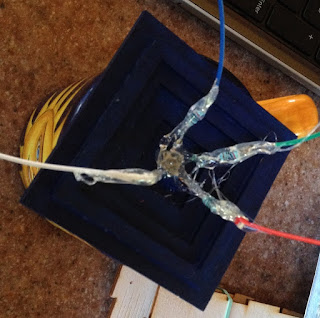
View of ATtiny85 from underneath TARDIS

I'm excited about this build, featuring 10 hand-soldered NeoPixel LEDs and a diffused 10mm RGB LED, because it led to my further experimentation with electronics.  I've built a couple others incorporating Photons, but this one doesn't require reliable wifi or a pricey microcontroller.

Electrical components that fit inside the box
I am powering the device using a switched battery holder containing 2- AAA batteries. I am still trying to figure out how to use capacitors in order to use a 5V power supply, such as a USB port.

Lessons learned:
I learned that the code for using a common anode RGB LED is slightly different from that using a common cathode RGB.  I also figured out how to combine NeoPixel sample code with a blinking RBG LED for really fun effects.

Breadboarding the entire circuit prior to soldering was essential, and helped to ensure that my code worked. In the process, I was reminded of the importance of burning the bootloader of an ATtiny85 to 8 Mhz before uploading code featuring NeoPixels.

I should have tested the soldering connections with the multimeter as I worked (not after).  During my first iteration, I made the mistake of soldering everything to a 1" X 1 " ProtoBoard without noticing that every three holes of the board were connected vertically.  As a result, I had to start all over!  The board depicted above (which I ended up using in its place) is half of an Adafruit Perma-Proto board, which was more intuitive to work with.

Soldering jumper wires to the LEDs and NeoPixels, and connecting them to wires soldered to the pins of the ATtiny85, is a good way to connect components.  Color coding my wires, and using labels, helped to prevent confusion when assembling everything inside of a tight space.

Placing 200 ohm resisters on each of the RGB legs is a good idea.

Using a glue gun to provide strain relief and insulation for the RBG LEDs and NeoPixels is vital.

Wednesday, May 24, 2017

Internet Connected CheerLights Hat (Featuring the Particle Photon)

Internet Connected CheerLights Hat (Featuring a Photon)

For more details, CHECK OUT MY INSTRUCTABLE!

This weekend, I whipped up a fun e-Textile hat that combines the magic of CheerLights with a Particle Photon, a microcontroller that can connect to the cloud to help you with all of your Internet of Things projects!  According to CheerLights' Twitter bio, "CheerLights is an #internetofthings project by @scharler to synchronize lights to the same color at the same time all around the world."  If you haven't tried it, you are missing out on something fun- something that has the potential to captivate students who might be wondering how smart objects communicate with the World Wide Web.

The result of my tinkering was an internet-enabled hat that changes colors in sync with lights all over the world, in response to Twitter messages mentioning @CheerLights and the name of a desired color.

If you end up doing something like this with students, you might be also interested in knowing that there's even a free CheerLights Chrome extension in the Google Chrome store, which will allow you to see the most recent color set on the CheerLights Application Programming Interface (API) in an icon on the top right corner of your browser!  This might be useful if you are engaged in prototyping with CheerLights, (or if you're just curious).


I'm sharing the details of my build, in case you'd like to try to make your own CheerLights wearable. I am working under the assumption that you already know how to set up a Photon and upload code using the Particle IDE.  If you don't yet know how to do this, I suggest you visit this Particle Guide.

Useful Tools and Supplies:

1.  a soft fabric hat
2.  a rotary leather punch or Japanese screw punch (to make holes in the hat)
3.  an eyelet setter
4.  eyelets
5.  hammer or mallet
6.  glue gun
7.  soldering iron with helping hands
8.  Photon microcontroller with headers
9.  Spark Fun Photon Wearable Shield
10.  Lily Pad Simple Power
11.  500 mAh Lipo cell battery
12.  10X SMD RGB LED's (or sewable Adafruit NeoPixels)
Note:  NeoPixels are much easier to solder, but the SMD RGB LED's are more compact.
13.  stranded silicon wire (I used red, black, and yellow)
14.  5 male to female jumper wires (2 black, 2 red, 1 yellow)
15.  Velcro squares

Directions:
The firmware/ code I'm using was shared by Matt Holmes in his NeoPixel reindeer project on GitHub. If you are new to the Photon, you might want to spend a little time reading the tips Matt Holmes shares to help you get started with the proper libraries.

1. Upload the CheerLights code to your Photon.  Modify the code so that the PIXEL_PIN is D7 instead of D0 and the PIXEL_COUNT is 12 instead of 1.

#define PIXEL_PIN D7
#define PIXEL_COUNT 12

2.  Solder the male half of a black jumper wire to the ground pin of the Lily Pad Simple Power and the male half of a red jumper wire to the positive pin.

Solder the female half of a black jumper wire to one of the ground pins on the Spark Fun Photon Wearable Shield and the female half of a red jumper wire to the VIN pin on the shield.


3.  Solder the female half of a red jumper wire to the 3Vpin of the Spark Fun Photon Wearable Shield. Solder the female half of a yellow jumper wire to the D7 pin.  Solder half of a male black (I used brown) jumper wire to the other ground pin.   Insert the jumper wires attached to the Lily Pad Simple Power into their corresponding male jumper wires on the Spark Fun Photon Wearable Shield.

4.  Find an old hat that could use a makeover.
(Black felt is flexible enough to roll and bend, making it easy to poke holes with the leather punch).


5.  Select an eyelet setter.  A universal eyelet setter may be easier to use than the squeezable type if you plan to place eyelets far from the hat's brim.


6.  Use the leather rotary punch or Japanese screw punch to create holes in your hat that are slightly smaller than the eyelets you're using.  Set the eyelets so that the finished sides are visible from the front of the hat and the rough edges are on the inside.

I've got a piece of granite under my hat to protect my work surface.

7.  Use a glue gun to protect the solder joints.  You can Velcro the shield, Lily Pad Simple Power, and the battery to the hat now or later.


8.  Solder the SMD RGB LED's (or Adafruit NeoPixels) together with stranded wire, ensuring that the wire is long enough to reach each of the holes that you made.  I used black wire for ground, red for power, and yellow for the data lines.

I cut and tinned the data wires before soldering the strand together.  I used a set of third hands to secure the notched corner (ground) as I worked.

 If you're using SMD RGB LED's, take note that one corner has a notch in it which denotes ground.  Use the ground notch to ensure that all of your LED's are oriented properly as you work.


9.  When you're finished soldering the lights, solder the female halves of the red, black, and yellow jumper wires to the matching wires attached to your light strand.

Verify that the data in is positioned at the top of the strand.


Switch on the power to the Lily Pad Simple Power.


Once your Photon connects with the Internet, you should be able test your test your light strand. After ensuring that all of your LED's are working properly, protect the solder joints with hot glue.
Protect the solder joints with heat shrink wrap or electrical tape.


10.  Insert the female jumper wires attached to the light strand into their corresponding male jumper wires on the Spark Fun Photon Wearable Shield


11.  Switch on the power to the Lily Pad Simple Power.  Once your Photon connects with the Internet, you should be able test your test your RBG LED/ NeoPixel strand.


12.  After ensuring that all of your LED's  are working properly, protect the solder joints with hot glue.


13.  Glue your LED's into position, centering them within the eyelets before the glue cools.  I found it helpful to detach the Spark Fun Photon Wearable ShieldLily Pad Simple Power, and the battery first. I began by gluing the last light in the strand, working my way towards the microcontroller.


14.  Enjoy your awesome new internet-connected creation!


Matt Holmes, you are a true hero for sharing your code (and your reindeer project) with the world! THANK YOU.

Tuesday, April 4, 2017

CheerLights, Node-Red, & Raspberry Pi

I first experimented with CheerLights a few months ago while attempting to better understand the Internet of Things.  Today, I'm using a Raspberry Pi Zero, rather than a Photon microcontroller. One dazzling detail about CheerLights is that it allows people all over the world to simultaneously synchronize the color of lights. Anyone can change the color of lights connected through the CheerLights API, by sending a tweet that mentions CheerLights, along with the name of a color.


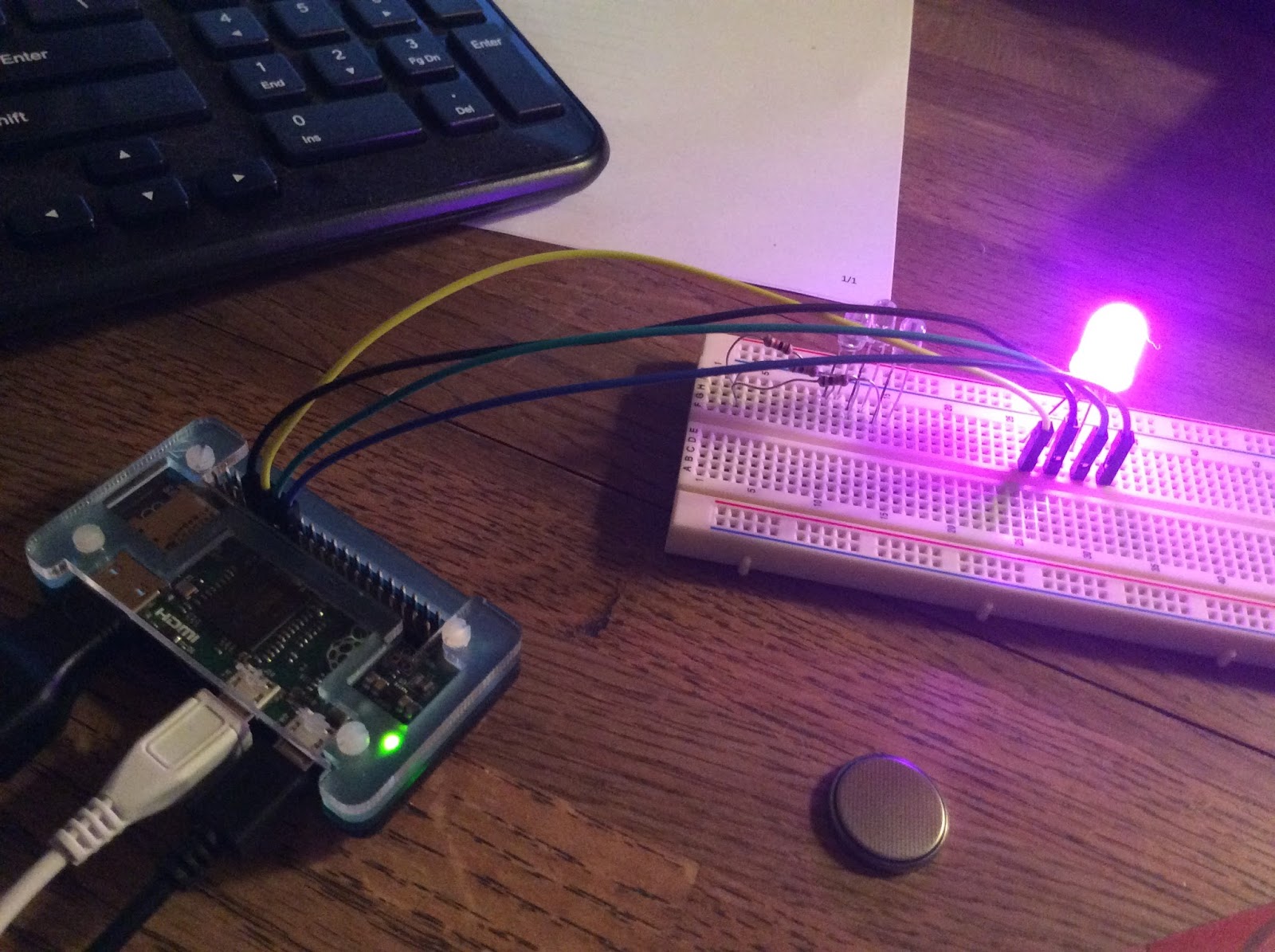
Using this Node-red tutorial from Magpi magazine, I was able to get CheerLights up and running on my Pi with relative ease. In the process, I learned a little bit about Node-red, a graphical interface for interacting with smart objects through the web.  Of note, I used a 10mm RGB LED with a common cathode, rather than the suggested Ledborg or three separate LEDs.

This diagram shows the flow used to trigger CheerLights on a Raspberry Pi using Node-Red

I'm wondering what else might be achieved with Node-red.  The interface is not entirely intuitive, but it seems like it could be useful tool for learning how smart objects talk and interact on the internet.

Sunday, March 5, 2017

Raspberry Pi & Weather Underground Data Experiments

Over the past couple of weeks, I've been playing around in an attempt to better understand and apply weather data that's available on the web.

As part of this journey, I hooked up my Raspberry Pi to a Sense hat, and used ThingSpeak to log the data. I lucked into finding this detailed tutorial, which helped me track my home's temperature and humidity levels (although I had to remove some strange characters in the code before it would compile properly).


I also completed Raspberrypi.org's Fetching the Weather exercise, to learn how to access data from a nearby Raspberry Pi Weather Station.  I was surprised that the nearest RPi weather station is in Quebec, Canada; I was hoping to find a school in Vermont that was using one.
Weather data from Canada using a Raspberry Pi Weather Station

This discovery led me down a path that was unrelated to my Python exploration, but splendidly related to weather data.  Finding it hard to believe that the nearest weather station was in Canada, I stumbled upon the Weather Underground API, which connects to weather data in my home town.  This prompted me to do a deeper dive to better understand how I might use that data, perhaps in combination with a Photon microcontroller, as part of an art project I was working on.

To make a long story short, I signed up for a Weather Underground account and was given an API key that allowed me to tap into JSON data using a dedicated channel that I created on ThingSpeak!  While I still have a lot to learn, I was able to use the MATLAB analysis feature (which allows you to "Get Data From a Webpage") to harvest weather conditions by typing in a unique URL containing my API key.  I was then able to record things like wind velocity and temperature. This meant that I could use data ranges that I specified to trigger functions on my Photon!  I know this is dorky, but the learning curve has been exhilarating!

A smattering of JSON data that may be harvested through Weather Underground


Thursday, December 8, 2016

Artwork Brought to Life with Photon Sensor Data (#IoT)


Art Brought to Life with Photon Sensor Data


I'm making progress toward my goal of creating a wifi-connected book that uses data to help tell a story.  As a test of concept, I created a Thing HTTP app and a "React" app in ThingSpeak to trigger a Particle function (on one Photon) based upon readings from a Photocell (attached to a second Photon).  To get started, I created a ThingSpeak channel and a Particle web hook by following this tutorial.

Once I created the web hook and connected my Photon to a light sensor, the Photon started logging the data on ThingSpeak.  In order to make the data more useful, I modified the Photon code in the tutorial by adding the following lines to the loop, just above the line containing the Write API key for the ThingSpeak Channel.)

value = map(value, 0, 4096, 0, 255); //maps values
value = constrain(value, 0, 255); //constrains values between 0 and 255.  


Next, I uploaded this code to a second Photon, connecting the Photon to a paper circuit using alligator clips. Lastly, I created the ThingHTTP and React apps.


The React app allowed me to set up a trigger related to the data.  I set it up so that a reaction happens any time the sensor picks up a value of 150 or greater (when it's cloudy or dark and the resistance increases) or 50 and under (when it's bright or sunny) . The ThingHTTP app allowed me to post an HTTP request to Particle, triggering the Particle function that illuminates the owl's eyes and the candle flame.


I later added LEDs to simulate falling snow.


Monday, November 14, 2016

A Working Prototype (#IoT)

Merging Different Functions

I've reached the point in my exploration where I've got several different functions merged into one program and a working prototype that uses alligator clips, a servo, a buzzer, NeoPixels, and surface mounted LEDs. The trick is going to be figuring out how to streamline the circuit so that it can fit neatly inside of a book (that will be built to accommodate it), with different functions playing on different pages to help tell a story of some sort.  

I just ordered some conductive fabric strips to test out for the hinges.  This tape is conductive on both sides, so I could conceivably use it on the hinges and adhere it to copper tape soldered to the Photon.

I have been unsuccessful getting a more compact servo to work with the code, so I may have to table the servo idea, unless I can come up with a way to conceal it.  The servo I'm currently using, the TowerPro SG90, is over an inch tall.  The one I want to use, the HK5320, is much smaller.  I can't figure out if the issue I'm having relates to voltage or something else.

SMD LED Function

Monday, November 7, 2016

Interactive NeoPixels with Photon and Twitter (#IoT)

Today, I spent time experimenting with code and playing around with  If Then Than That (IFTTT), which recently changed its set-up.  My goal was to start merging programs on my Photon.  So far, I've got a servo and NeoPixels running in one program, but I'd still like to add in code for a buzzer and LEDs that will be triggered by a light sensor.

My most exciting breakthrough was figuring out how to use IFTTT's "New Tweet From Search" feature, which makes it possible to trigger a web request by filtering a search in Twitter.  In the case of my experiment, I created Applets, formerly referred to by IFTTT to as recipes, that can control the colors of NeoPixels connected to my Photon, in much the same way that CheerLights work!


This could provide an interesting way to interact with a wifi-connected book.  A reader could send a tweet to change the color of LEDs in the book or scan a QR code to achieve the same effect, by triggering a Maker Event (also set up in IFTTT).  While I'd already figured out how to do this with my own Tweets, I now know how to allow other peoples' tweets to interact with my Photon.  My next step is to add code to the program so that a musical function is called in response to data received on a light sensor.