Showing posts with label tools. Show all posts

Wednesday, February 18, 2015

Daleks for Digital Citizenship: Five Tools for Attributing Creative Commons Images

There are several tools available for quickly and correctly attributing Creative Commons licensed images. I've previously shared screencasts for using two of them, but I've recently discovered others.

Photopin Example:
One of my latest discoveries is Photopin.com.

Like ImageCodr.org and the Flickr CC Attribution Helper, which are tools that may be dragged to one's toolbar, this site allows users to grab HTML code that will quickly generate an attribution on a website or blog.

Unlike ImageCodr.org, this tool requires users to download a desired image and copy the HTML code in two separate steps.  Currently, it's not possible to preview the attribution prior to pasting the code.

One thing to watch out for with Photopin.com is that the sponsored images on their site may have watermarks on them.

photo credit: Exterminate via photopin (license)


Photos for Class Example:
I learned about this tool from Richard Byrne, who recently wrote a blog about the Photos for Class widget that allows users to add a tool to their blog to search for Creative Commons licensed images.

Images from this site have been filtered and deemed safe for a school audience and have the attributions typed on the actual images that are downloaded for personal use.

While this tool eliminates some of the guesswork, the attribution may be difficult to read (see the example on the left) if the image selected isn't large.  This tool should be used judiciously, because text that's impossible to read defeats the purpose of attribution.  (I've linked the image to its original source.)


FlickrCC Stampr Example:
The FlickrCC Stampr was created specifically with students in mind and for use on mobile devices.

Like Photos for Class, this tool can stamp attribution information directly to an image for download.  Like ImageCodr, you can choose the image size you want and opt to copy the HTML code.

This tool is particularly useful for creating remixes and other derivative works, because it only filters images licensed with those permissions!


ImageCodr Example:
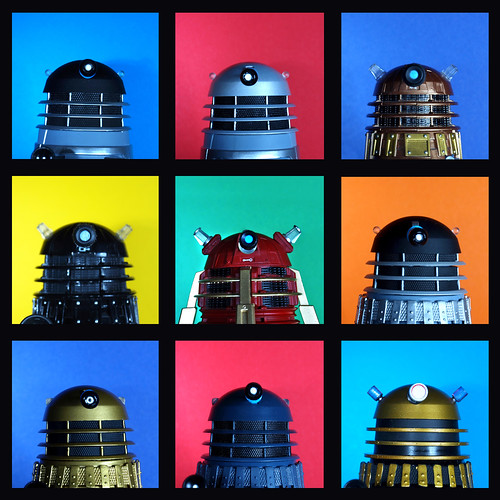
nine daleks by Johnson Cameraface, on Flickr
I prefer the ease and appearance of ImageCodr attributions.  The name of the license and the creator of the image are both prominent in this attribution, and it's all accomplished in one step.

Additionally, users can preview the attribution when selecting the size of their image.  This is handy in the event that you want to copy and paste the attribution into a Google Doc or a static presentation, rather than using HTML code to generate it for you.


Creative Commons Creative Commons Attribution-Noncommercial-Share Alike 2.0 Generic License by  Johnson Cameraface 


Flickr CC Attribution Helper Examples:
Flickr CC Attribution Helper allows you to "build your own attribution tool," enabling you to choose whether you want to download an image and copy the attribution together or separately or to use the HTML code. In the first example on the left, I added the attribution info separately from the image.  As a result, the attribution is not hyper-linked.


Creative Commons licensed (BY-NC-SA) Flickr photo by Johnson Cameraface: http://flickr.com/photos/54459164@N00/5669445634


Using the HTML code, rather than copying and pasting the image and attribution separately, will result in the creation of a hyper-linked attribution, which is useful for interactive images on websites or blogs.


creative commons licensed ( BY-NC-SA ) flickr photo shared by Johnson Cameraface


Having the attribution information stamped directly on the photo is another useful feature of this tool. The attribution will not be hyper-linked if you stamp the image.

Sunday, November 16, 2014

Tools Glorious Tools (30 Day Blogging Challenge #15)

Today's prompt:

What tech tools are you most grateful for? Why? How have they changed what you do?


In a previous post, I addressed this question in terms of five favored tools that I've frequently used with students.  While I got very specific in that post, I sort of overlooked the obvious.

As a result, I'd like to re-frame the question here to identify tools that are not only useful in a classroom setting, but those that have become so integrated with my life that I have nearly taken them for granted.


I am especially grateful for Google tools, such as Drive, Docs, Gmail, Blogger, Calendar, Sites, and Google+.  Both personally and professionally, these tools have drastically improved my efficiency and ability to communicate, create, collaborate, and curate.

I'd also like to give a huge shout out to Diigo, my favorite social bookmarking tool.  It has become an extension of my memory, allowing me to save, tag, and organize interesting links as I encounter them.  I love the way that my favorite tweets* (the ones that I mark with a star) magically appear in my bookmarks! What a great way to collect, share, and quickly access words of wisdom and other juicy gems.        

Thanks also go to my favorite iPad creation apps, which have inspired me to explore, play, and express myself in new ways.

My favorites currently include:

Pic Collage
Do Ink Green Screen app
Do Ink Drawing & Animation app
iMovie
Garage Band

*I'm saving my thoughts on the beauty of Twitter for an upcoming post.

Sunday, September 14, 2014

My Favorite EdTech Tools (30 Day Blogging Challenge: Day 13)

Name the top edtech tools that you use on a consistent basis in the classroom, and rank them in terms of their perceived effectiveness.

Although there are quite a few other tools that I also routinely use with students, these are my top five.

ThingLink is a tool that allows students and teachers to create interactive images.  I have used this tool for a variety of different projects, and have found that students really enjoy it.  Here is a link to some examples of ways that I've used it professionally.

Socrative is a great tool for formative assessment that invites students to use any smart device to answer questions provided by a teacher.  There is even a "space race" feature that can be used by student teams who compete to answer the most questions correctly.  My favorite thing about this tool is that students who may be quiet in class can easily participate.  I've used this tool to introduce classroom procedures, as a pre-assessment, and to quickly check the pulse on a class.  You can create your own quizzes or download quizzes created by others.

Google Drawings
Google Drawings is one of the most underrated tools in the GAFS toolkit.  Because Google Drawings can be downloaded as JPEG files, they are great for use in a variety of projects.  I've used Google Drawings to teach students about copyright and creative commons.    Students have used their drawings to create interactive images in ThingLink, illustrations in Animoto videos and Movenote presentations, Aurasma trigger images, and more.

This is an example of a Google Drawing assignment using ThingLink.


MoveNote is a wonderful tool for students and teachers to tell stories and showcase their learning. Movenotes feature images in the form of a scrolling presentation, but they also allow a story teller to record a video of themselves (or a talking avatar) to convey even more information.  I've found that students who've created MoveNote presentations increased their reading fluency while practicing their scripts.  Here is a link to a MoveNote that I made that includes a Tellegami talking avatar.

ImageCodr is a useful tool for getting the attribution information for Creative Commons images available on Flickr.  If you'd like to learn more, you can watch my video tutorial here.